2D plan, Sketch & 3D
The same scheme reads four ways: the 2D plan, the sketch, the 3D model, and the 3D model as white card. Switch between them in the top bar; each is suited to a different job.
2D plan
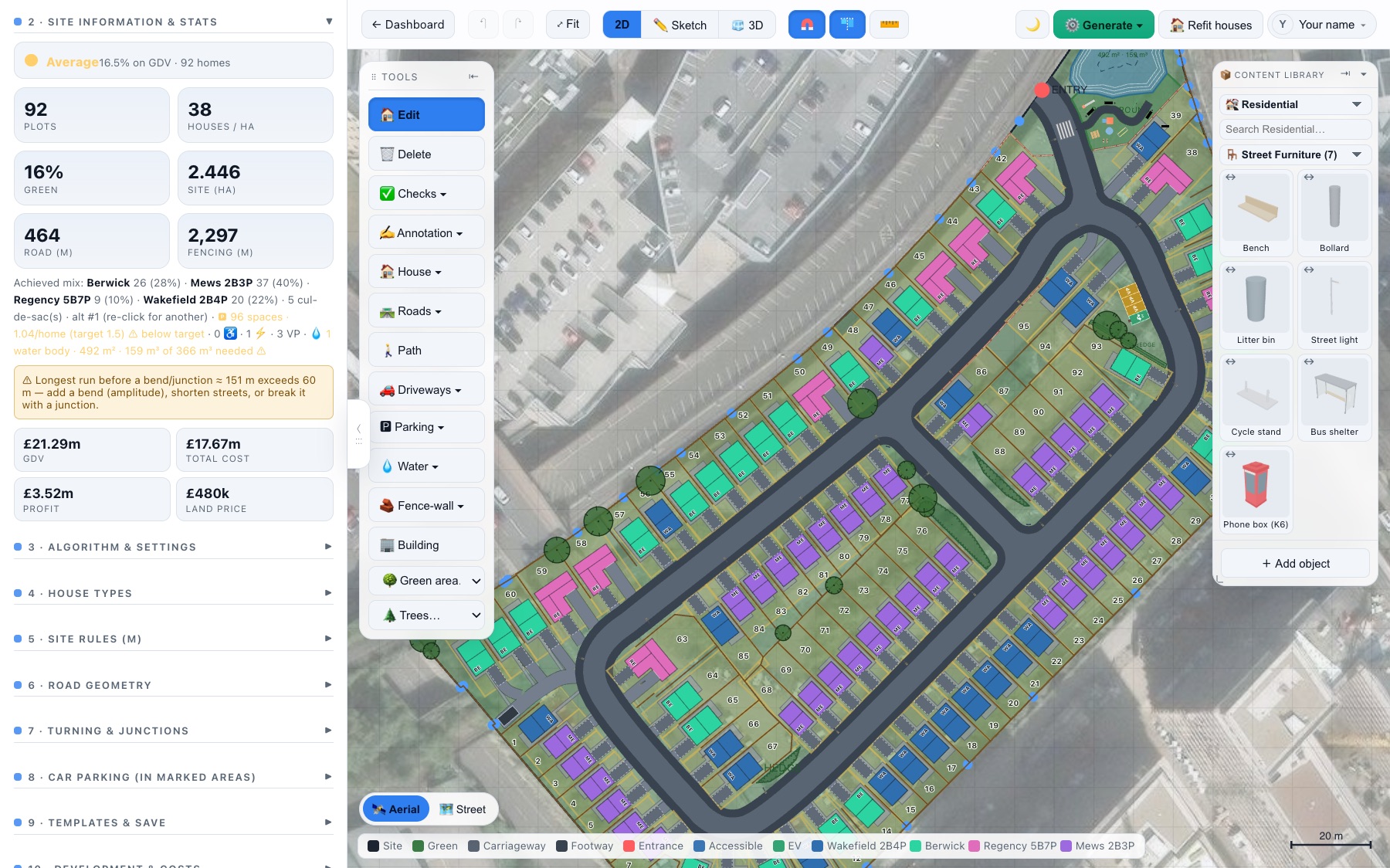
The coloured working view — houses by type, roads, parking, landscaping and annotations. This is where most editing happens.
Sketch
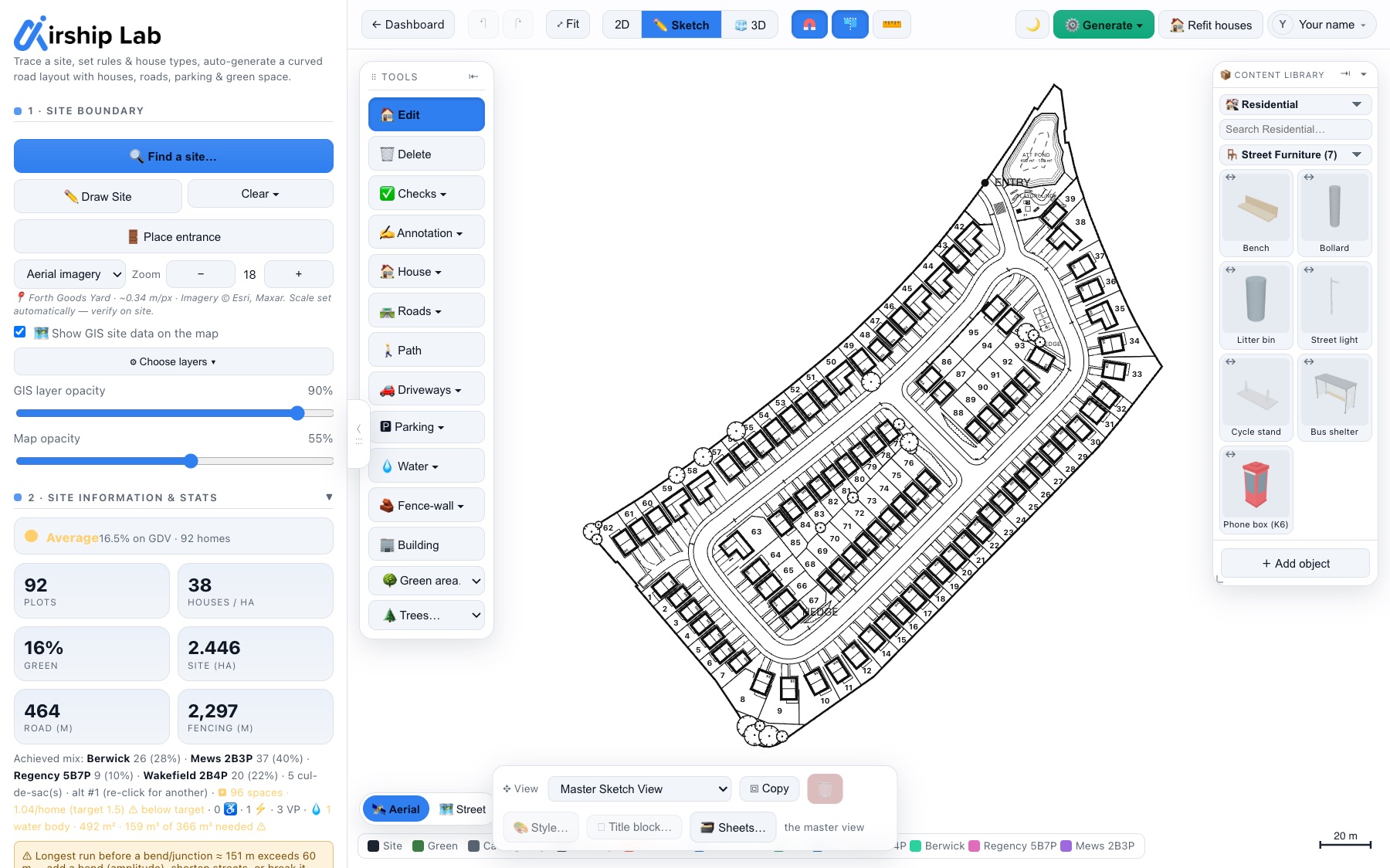
A black-and-white line drawing in a planning-application style — no map or GIS underlay, just the linework. Library objects render as grayscale plan symbols. Ideal for a clean issue drawing.
3D
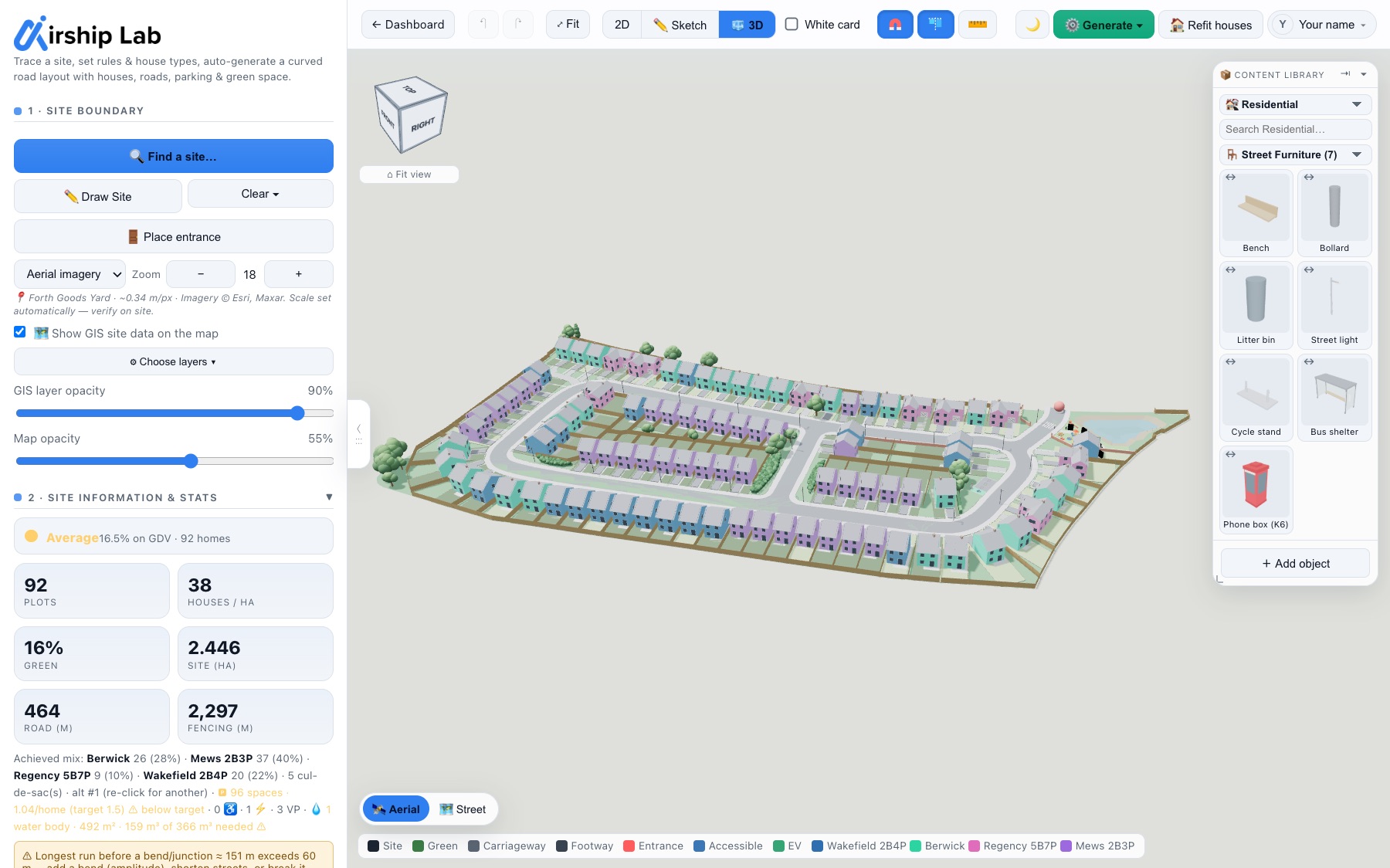
A full model you can orbit and walk — houses with roofs and windows, roads cut into the ground with kerbs, trees and street furniture. Drag to orbit, scroll to zoom. Use it to sense-check massing and for AI renders.
Walk the site in 3D
See the scheme as someone standing in it would: at eye height, at walking pace. It works on every kind of site, housing, retail and events, on a computer and on an iPad.
- Start. In the 3D view, press 🚶 Walk, the button directly under ⌂ Fit view below the view cube.
- Choose where to stand. Click (or tap) the ground where you want to start. You can still orbit and use the cube while you choose. A blue ring marks a suggested start: just inside the site entrance, or the end of the road where it meets the boundary, or the middle of the site. Press ★ Start at … (or Enter) to start there. You face the way the view was looking.
- Walk. W A S D or ↑ ↓ walk and step sideways; ← → turn. Click the model to look around with the mouse; Esc frees the mouse again. Hold Shift or press 🏃 Run to run.
- Leave. Press ✕ Exit walk (the same button), or Esc when the mouse is free. Your 3D view goes back exactly as it was. Switching to 2D or Sketch, Fit view and Measure also end the walk.
On an iPad a thumbstick appears at the bottom left: push it to walk, further to go faster. Drag anywhere else on the model to look around. 🏃 Run and 👻 Ghost are in the bar along the bottom, just right of the thumbstick; ✕ Exit walk is under the view cube.
- What stops you. Houses, existing buildings, the retail store, walls, fences and hedges (a gap in a run is a way through if you fit), barrier and Heras runs, ponds, and solid objects: stages, tents and marquees, cabins and toilets, bars and food units, rides, generators, benches and shelters. On an event site every event object stops you, waste bins included, except gates, HVM openings, vendor pitches, fire points and camping kit inside a campsite. Trees stop you only at the trunk. Signs and small street furniture, such as bollards, litter bins and lamp posts, do not. Roads, paths and the site boundary never do: you can walk off the site.
- Ghost. Press G or 👻 Ghost to walk through anything, a marquee or a house included. Press it again and you step out of whatever you are standing in.
- Nothing changes. While walking you cannot select, move or add anything (the content library hides until you leave), and keys such as Delete, S, Space or undo do nothing to the design. Edits that arrive from a collaborator still show, and you step aside if one lands on you. Anyone who can open the design can walk it, including viewers.
- Exports. A PDF report or AI render made while walking uses your eye-level view.
White card
In the 3D view, the White card tick box in the top bar, just after the 2D · Sketch · 3D switch, turns the model into an architectural white card model: no colours or textures, everything white, read by its edges and its shadows. Untick it to go back to the colour model. It shows only in 3D, on every kind of site; when the top bar has no room for the words it keeps the tick box and drops them.
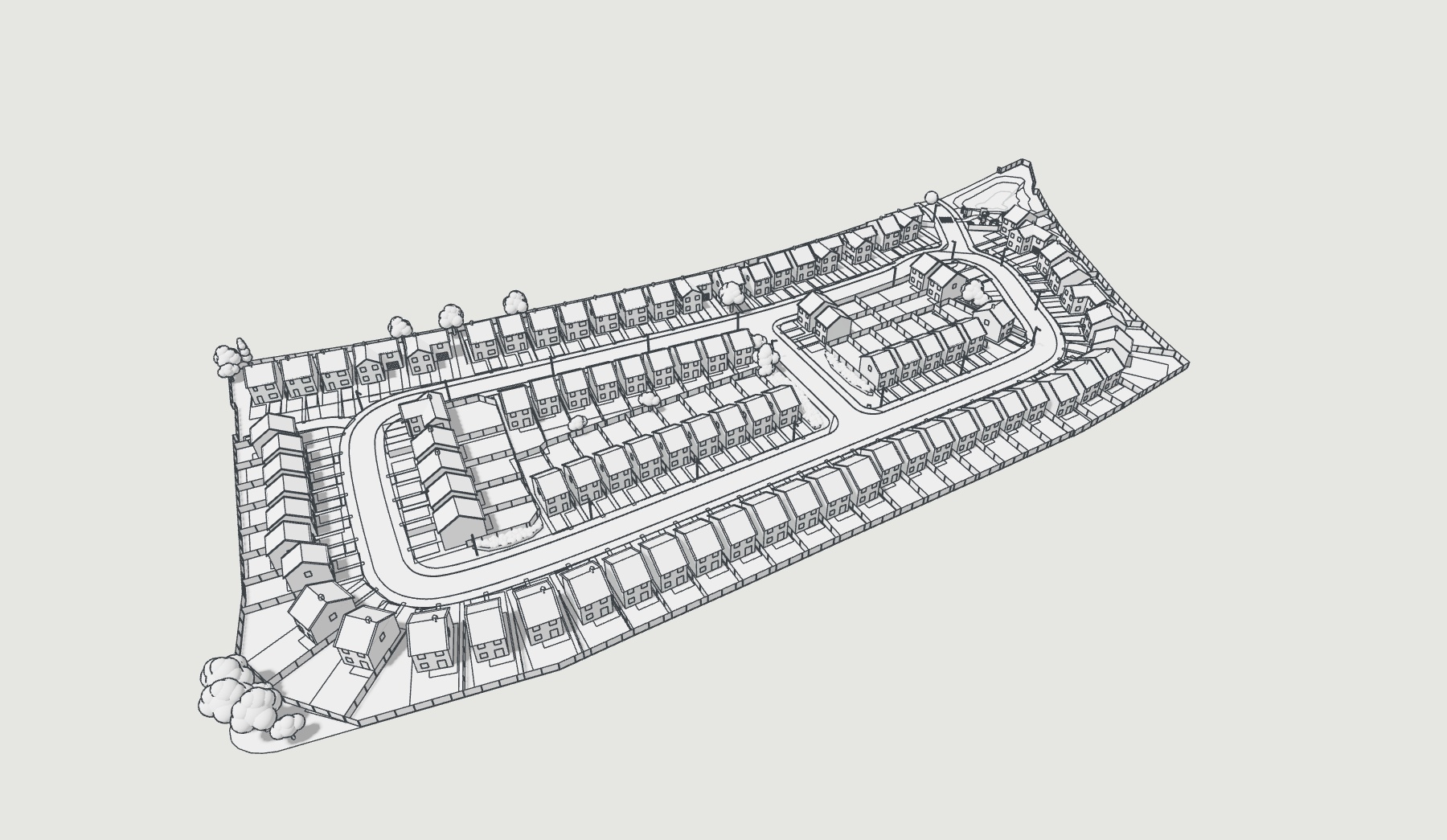
- What turns white. Everything that is the design: the ground and the context round the site, grass and event zones, gardens, roads, footways, kerbs, drives, parking and the retail yard, houses (walls, roofs, chimneys, windows and doors), the store and existing buildings, fences, walls and hedges, trees and planting, and every library object, rides included, moving or not. Windows and doors are white too, drawn by their frames. Water stays see-through, as frosted white over its bowl. The painted bay markings are hidden.
- What keeps its colour. The tools, not the design: the move and rotate gizmo, a fence you have selected (yellow, with its vertex handles), the Measure markers and the vehicle sweep overlay. They keep their colour but look a little brighter than in the colour model, because the white card lighting is brighter.
- Edges and shadows. The plan reads by its lines: the site boundary, zone outlines, kerb lines, bay outlines, window frames, roof ridges and eaves. Lines thin out with distance so a large site stays clean. The sun is where it always is, so the shadows fall exactly where they do in the colour model.
- Your own setting. On or off is remembered for you on this device, and it is off to begin with. It is not saved in the design: it never reaches the plan, undo, autosave or anyone you collaborate with, and each of them chooses for themselves.
- Exports. The 3D page of the PDF report follows the view when you export from the 3D view: with white card on it is the white card model, with shadows and edges. Exported from the 2D plan it is always the colour model. AI photo renders always start from the colour model, whatever this button says, because the render relies on the colours (roofs, brick, tarmac against grass, water) to build a photo.
- Colour changes. While white card is on, colour changes you make to objects do not show in 3D. They are kept, and show when you switch it off.
Visual quality
Press ✨ in the top bar of the 3D view for Visual quality: ambient occlusion, softer or lighter shadows, a sun you can move (or the real sun for the site on any date and time) and warmer lighting. It starts on Standard, today's look, and is your own setting: it is not saved in the design.
Try it on your own site
Turn a boundary into an optimised UK layout in minutes — free to start.
Open the app →