Zones, objects & the Stage builder
An event site is drawn as zones (the arena, the campsite, the car parks, the compounds), objects from the event library (stages, tents, toilets, bars, gates, bins — 38 of them in seven categories), barrier runs and trackway. Each zone with a published density shows its capacity on its label; each object knows what it provides, when it is on site and what it costs to hire.
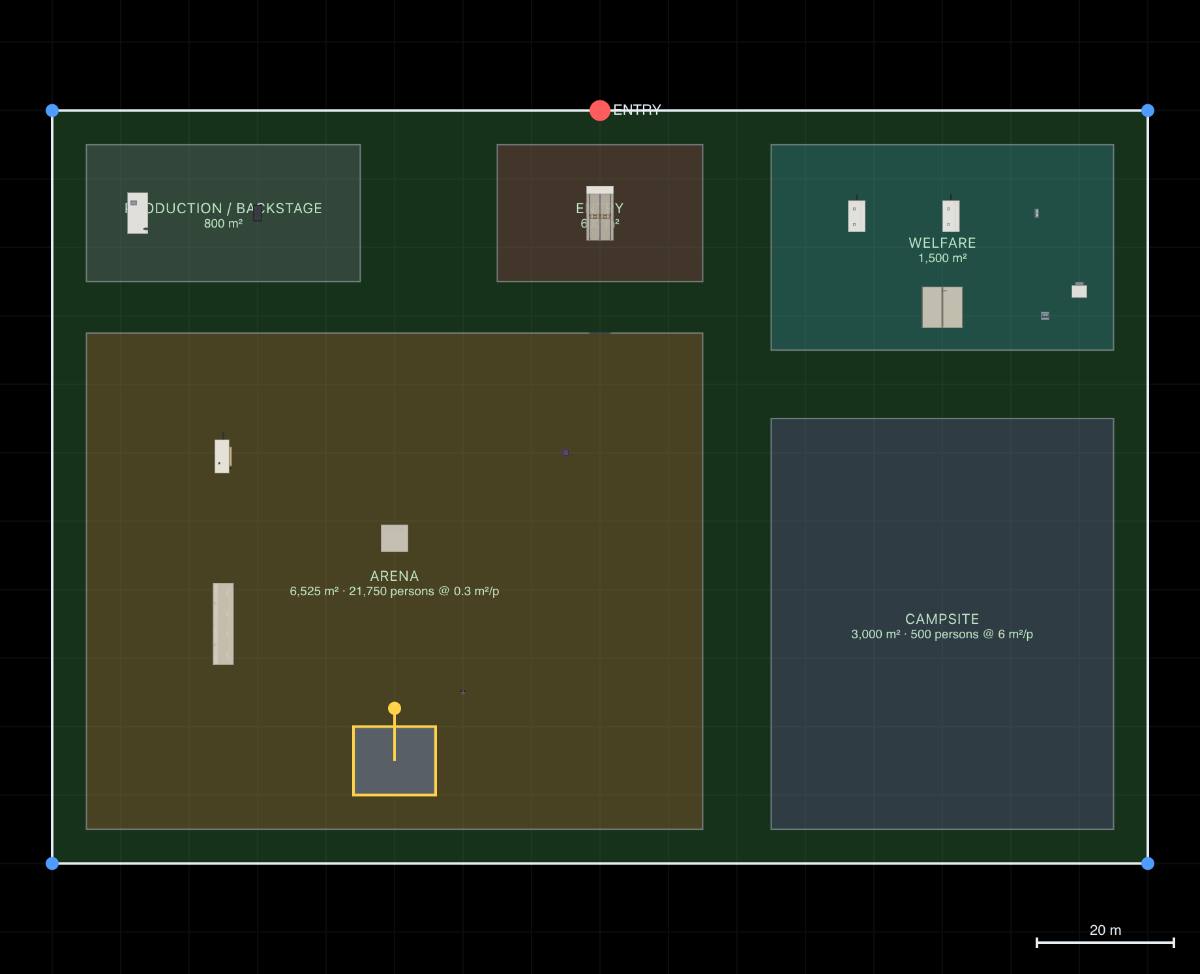
Drawing zones
Pick a kind from the 🎪 Zone… picker (or 🎪 Event ▸ Draw zone…), then click the plan to lay the corners; close the site boundary first. A zone's label shows its area and, where the kind has a published density, its capacity — "1,234 persons @ 0.3 m²/p" — or says "no published density".
| Zone | Capacity | On site by default |
|---|---|---|
| Arena | Standing audience, 0.3 m² a person (gov.uk open-air guide Table 3 — Checked) | Live |
| Campsite | Camping, 6 m² a camper (gov.uk open-air guide Table 3 — Checked) | Live |
| Production / backstage | none published | Build · Live · Derig |
| Welfare | none published | Build · Live · Derig |
| Bars & traders | none published — no UK ratio per attendee exists | Live |
| Entry | none published; its area is judged against the queue's holding area | Live |
| Safer area | Not a crowd zone. Where people go to invacuate (Martyn's Law). It counts only when drawn inside an existing building on the site or on a hard-sided structure such as a site cabin, a container or the ticket kiosk — never a tent, marquee or open ground, and never the control room or the lost-children cabin. The check gives the most people who physically fit, at 0.3 m² a person (our ceiling, not a shelter standard). Safer areas are part of the security layout, so the shared outputs leave them out unless you tick them in; see Martyn's Law readiness | Live |
| 🅿 Car park | Temporary event parking by default: indicative spaces on open ground, laid out by the parking engine and kept off placed objects, with no aisles, surface or markings. Switch an area to a standard (built) car park from its edit bar. VIP bays can be marked | — |
The guide's other densities — assembly 0.5 m² and dining 1.0 m² a person — are in the model but no zone kind uses them yet, because a vendor compound sized at a standing density would be a wrong number with a confident badge. A grass car park is laid out with our own field defaults — 2.5 × 5.0 m bays, 6 m aisles, 90°, nothing built — and the 8 · Car Parking panel says so on an event site; see temporary event parking.
The library
🎪 Event ▸ 🚻 Place object… opens the content library on the event categories; click a card to place it, then drag it into position. Objects are recognisable kit — a 16-cubicle toilet trailer is 13 m long and shows sixteen doors — and the plan, the thumbnail and the 3D form all come from one model. Footprints are typical UK hire dimensions; no standard governs them, and they carry the Assumption badge.
| Category | Objects (parameters) |
|---|---|
| 🎤 Performance | Stage (the Stage builder), FOH tower, Screen (width, height), Delay tower, LED screen trailer (small), LED screen trailer (large), LED video wall (freestanding), Outdoor projection screen, Power distribution box |
| ⛺ Structures | Marquee (span 6–25 m, length, exits), Stretch tent (exits), Gazebo (exits) |
| 🚻 Welfare | Toilet trailer (6, 10 or 16 cubicles), Portable toilet, Urinal bank (4 or 8 positions), Accessible toilet, Hand-wash unit (2, 4 or 6 basins), Drinking-water point, Water bowser, Shower block (4 or 8 showers) |
| 🚑 Medical & safety | Medical post (width, depth), Welfare tent, Lost children, Control room, Lighting tower, Generator (20–500 kVA), Helicopter landing site (pad size, windsock), Fire point, Ambulance (UK), Ambulance (St John Ambulance livery), Police car |
| 🍔 Bars & traders | Bar (length), Food unit, Ice cream van, Hot dog stall, Burger van, German bratwurst hut, Merchandise unit, ATM, Vendor pitch; Burger, Coffee, Pizza and Vegan food trucks, Coffee, Taco and Gelato campers (retro), Retro diner trailer, Bakery van (retro), Sausage roll van, Crêpe van (corrugated), Crêpe & churros trailer, Wood-fired pizza trailer, Gelato cart, Waffle & dessert stall, BBQ gazebo stall, Bratwurst, Chestnut, Mulled wine and Craft huts (Christmas), Churros chalet (Christmas), Container bar, Mobile bar trailer, Inflatable beer bar and Inflatable festival pub (bar length), Merchandise stall, Market stall (gazebo) |
| 🎟 Entry & movement | Entry / search lanes (1–8 lanes), Turnstile bank (2–8), Ticket box, Gate (width, default 3.1 m), Removable bollard / HVM opening (width 1–8 m, default 3.1 m), Accessible viewing platform |
| ♻️ Waste | 1100 L bin, Skip, Recycling station, Grey-water tank |
| 🎡 Entertainment | Rides: Junior big wheel, Big wheel, Giant wheel, Gallopers, Two-tier carousel, Juvenile roundabout, Elephant ride (flying elephants), Waltzer, Frog spin (jump-and-spin), Dodgems, Miami, Pirate ship, Swing boats, Booster, Claw, Drop tower, Bungee ball, Tower swing, Motion simulator, Caterpillar coaster, Ghost train, Fun house, Mirror maze, Helter skelter, Log flume. Inflatables and novelty: Inflatable slide, Trampolines (bungee), Mechanical bull, Inflatable obstacle course (giant balls), Inflatable sweeper game. Attractions: Climbing wall (mobile tower), Roller rink, Ice rink (real ice), Ice rink (synthetic), Silent disco. Stalls: Coconut shy, Basketball hoops, Hook-a-duck, Derby racers, Hoopla, Tin can alley, Shooting gallery, Darts, High striker (all with capacity parameters and an entrance side) |
| 🪧 Signage & wayfinding | Feather flag (food), A-frame sign, Fingerpost sign, Fence banner, Entrance banner |
| 📹 Site security | CCTV tower, CCTV sentry (portable) — both in the security layout, so hidden from review links and other people's outputs like the control room. Each has a view angle, view range and view direction under ⚙ Parameters (a tower 360° to 50 m, a sentry 60° to 30 m), drawn as a camera view splay on a sketch view that has them ticked — security material, hidden wherever the camera is |
Many of the original 3D objects count on an event site too — the porta-potty, the site generator, the bell tent, the Heras panel, every Temp Works item — under two more categories, 🏕 Camping & glamping and 🚧 Site & traffic; see Library groups and what counts on an event site.
Some event objects are fixed 3D models rather than parametric forms — the emergency vehicles, the signs and banners, the screen trailers, video wall, projection screen and power distribution box, most of the food trucks, vans, huts and bars, and the Quad bike, which an event site lists under 🚗 Entourage. Their size is the model's own and they have no parameters, only the Build · Live · Derig phases. The emergency vehicles are placed and scheduled, but they are not a medical post and are not priced: arrange cover with your provider. The LED screens are priced on the LED screen line, one per screen; the projection screen and the distribution box are not priced, and the distribution box does not count in the power check, which compares generator kVA with the ride and stall load. A food or drink model counts as one food unit, as the Food unit does; a bar model counts its bar length, which you can set to the counter you hire. The St John Ambulance model is named for its livery; it implies no endorsement by the charity.
Select an object and press ⚙ Parameters (or right-click ▸ ⚙ Parameters…) to set its parameters — cubicles, span, kVA — and the phases it is On site during (Build · Live · Derig, at least one). A multi-selection edits them together; a field that differs across the selection shows as mixed until you set it. What an object provides (a trailer's cubicles count as toilets, a lane set's lanes as entry lanes, a bank's positions as urinals) is what the provision checks count.
Entertainment: fairground rides and stalls
The 🎡 Entertainment category holds 44 objects: 25 fairground rides (wheels, roundabouts, flat and swing rides, thrill rides, and track and walk-through rides), five inflatable and novelty rides (an inflatable slide, bungee trampolines, a mechanical bull and two inflatable games), five attractions (a climbing wall, three rinks and a silent disco) and nine side stalls. Rides and stalls are built up and pulled down on the site, so they are on site in all three phases by default.
How some names are read. A few of the objects added on 21 Oct 2026 are known by trade or brand names, so the library names the type and draws nothing branded:
- Tower swing: the star-flyer type, a ring of two-seat swing chairs that rises up a tall mast while it turns. StarFlyer is a maker's product name, so the library names the type and the model carries no star or lettering; searching the library for star flyer finds it. The default is a 54 m travelling tower; set its height from 38 to 60 m. The footprint stays 32 × 32 m at every height, because it is the circle the chairs sweep plus the barrier.
- Elephant ride (flying elephants): the children's ride whose elephant cars rise and fall on arms round a turning centre, not live animals.
- Frog spin (jump-and-spin): the ride UK fairs often dress as a frog, with gondolas on arms that jump at random while the centre turns. Frogger and Crazy Frog are brands, so the model has no frog figure, face or lettering; searching for frogger finds it.
- Inflatable obstacle course (giant balls) and Inflatable sweeper game: "Total Wipeout" is a TV brand, and hire firms use the name for two different inflatables, a course of giant balls and a sweeper whose padded arm players jump. Both are here under generic names, with no set, colour scheme or branding copied; searching for total wipeout or wipeout finds both. They are rides for the safety plan, not side stalls: the course is a play inflatable (a PIPA tag or an ADIPS declaration) and the sweeper a powered amusement device.
- Ice rink comes as two objects. Real ice needs a refrigeration plant running day and night, about 300 kVA by default (place the generators as their own objects); synthetic panels need only music and lighting. Both take a rink size and an optional roof. The real-ice Power is the figure you set and does not grow with the rink: for a bigger pad, take it from the rink supplier.
- The roller rink, the silent disco and the mirror maze are new too. The disco's default 200 dancers is its 10 × 10 m floor at 0.5 m² a person, Approved Document B's dance-floor factor, which we apply outdoors as a benchmark; Scotland's handbook uses 0.7.
- A floor holds only so many. The rinks and the disco count no more people than their floor holds: the number you set (the operator's limit, or the headsets issued), or the floor at about 3 m² a skater or 0.5 m² a dancer if that is fewer. A 6 × 6 m disco floor holds 72, whatever the headsets.
- Climbing wall: the mobile tower on its trailer, in the 15 × 10 m space its hirer asks for.
The footprint is the operating footprint. A ride's width × depth is everything it needs while it runs: the machine, the space it sweeps at full movement (a pirate ship's swing, a booster's arm, a Miami's travel), the public barrier line around it, and its entrance and exit steps. HSE's fairground guidance says barriers must keep the public outside a ride's safety envelope (HSG175, para 242), so the barrier line is part of the ride. HSG175 gives no fixed gap between rides: spacing comes from each ride's envelope, its barriers and waiting areas, and emergency access (para 182). The default sizes are typical travelling rides from manufacturers' and showmen's listings, Likely at best. The ride's own manual governs.
Capacity. Every ride and stall carries its capacity as parameters: Riders a cycle (for a stall, Players at once), Ride cycle (a stall's Game time) and Load and unload in minutes, Minimum height in cm (0 means none: a stall, a rink, the silent disco and the mirror maze have none, and none is invented for them), Operators and Power in kVA. Riders an hour is worked out from them, never typed in: riders × 60 ÷ (cycle + load and unload), rounded down. ⚙ Parameters shows it under the footprint, for example Footprint 15 × 13 m · 4.5 m high · 40 riders a cycle · ≈ 480 an hour · min 120 cm · 2 operators · 45 kVA; a rink says 27 skaters at once, the disco dancers, a walk-through visitors. When the selected objects differ, it says that instead. The defaults are typical figures; set the real ride's own.
Entrance and exit. Each ride has a modelled entrance (steps or a ramp, a pay box and queue rails) and a separate exit gate, at least 2 m apart on the edge of the footprint. On the plan they are marked with a chevron and the word IN (green) or OUT (red; black ink on a sketch sheet). The marks keep a constant size on screen and turn with the ride. Zoomed far out, where a ride's IN and OUT would overlap, the words are dropped and the chevrons show the direction; a ride too small to see on screen shows no marks. They are hidden on a sketch sheet that hides event objects, and the DXF records them on EVT_ENT. Entrance side sets where they go: Left puts the entrance on the left of the ride as the plan shows it with the front at the top, and Right mirrors the entrance and the exit to the other side.
Perimeter barrier. Each of the 35 rides with a public barrier round it (the rinks, the disco and the other attractions included) has a Perimeter barrier tick box under ⚙ Parameters, ticked by default. Untick it on a ride to leave its barrier out, for example where the ride stands inside your own crowd-barrier run or backs onto a building. Only the barrier goes: the entrance steps, pay box, queue rails and exit gate stay, and the footprint, the capacity and the IN and OUT marks do not change. In place of the barrier the plan shows the operating footprint as a dashed outline, so the space the ride needs stays on the drawing; the outline is not drawn in 3D. The caption and the Event objects schedule say no perimeter barrier. The public must still be kept outside the ride's safety envelope (HSG175, para 242), so whatever you draw instead has to do that job. When the selection mixes rides with and without the barrier, the box shows a dash and leaves each ride as it was unless you click it. One Ctrl+Z puts it back. Export to Revit sends each ride as drawn: one with its barrier unticked becomes its own family, named with (variant 1), (variant 2) and so on, without the barrier. A copy in an array takes its parameters from the array, so set it on the run instead. The side stalls have no tick box: their rope line is part of the stall.
Keep-clear markings. The Booster's arm sweeps overhead beyond its ground barrier, so the plan marks the sweep on the ground either side as a dashed keep-clear line (yellow in colour, ink on a sketch sheet). Like the barrier-off outline it is a drawing mark, not an object: it is dashed on the plan and on sketch sheets, the DXF records it on EVT_ENT with the DASHED linetype, and it is not drawn in the 3D view, white card, the library thumbnail or a realistic render.
Ride capacity schedule. A sketch sheet on an event site offers a Ride capacity schedule with these columns: marks (the marks of the rides on that row), ride, quantity, riders a cycle, cycle, riders an hour, minimum height, operators and kVA. Its foot totals riders an hour and kVA across every unit placed. It downloads as CSV like every other schedule. When the design has rides, the Event Safety Plan appendix prints the same table under Objects.
Hire at £0. A travelling showman's ride or stall usually pays the organiser a pitch rent or a share of the takings. It is not hired in. The rates for rides, inflatables and side stalls on the built-in card are therefore 0, like the vendor pitch. The budget says so rather than showing £0 — Entertainment: 3 rides or stalls, rate not set — a showman's ride usually pays you a pitch fee. Enter a figure on your rate card only if you are hiring a ride in, or tick keep at 0 there to confirm the 0. The rinks, the silent disco and the climbing wall are different: an organiser usually hires them in from a supplier, with their staff, so they are priced on their own built-in 0, Attraction, hired in, where you enter the supplier's quote. The budget says that for them: Entertainment: 1 hired-in attraction, rate not set — enter the supplier's quote.
Animated rides in 3D
In the 3D view of an event site the rides can run. The Animate rides button, a small ferris wheel in the top bar just after the White card tick box, starts and stops them. With it on, the rides set off one after another over the first few seconds, as at a real fair, and keep going while the 3D view is open. Each ride placed runs on its own clock, so two of the same ride never move in step. The button shows only in 3D on an event site that has at least one moving ride.
- What moves. 29 of the 44 Entertainment objects animate. The wheels turn and their gondolas hang level. The carousels go round and their horses rise and fall on the rods. The waltzer's cars spin on the turning floor. The dodgems pull away from their spots onto a one-way circuit inside the kerb. The Miami's seat row circles up and over the front deck. The pirate ship swings to 70°, the cited machine's figure. The booster's gondolas swing over the top as the arm speeds up. The claw swings while its gondola spins. The drop tower lifts, drops and brakes. The bungee ball launches into a bounce. The coaster runs its track, slowing for the chain lift. The ghost-train cars run out along the front and back in through door flaps that swing open as each car arrives. The fun house's barrel, floor stripes and punch bags move. The log flume's boats climb the lift and come down the splash drop. The mechanical bull bucks. The hook-a-duck ducks circle the trough, the shooting gallery's ducks run their loop, the high striker's puck is struck up the scale, and the derby horses race in hops. The tower swing's chairs rise up the mast while they turn and swing out on their chains as it speeds up. The motion simulator's cabin pitches and rolls on its rams and is level again for loading. The swing boats swing on their own, each to its own rhythm. The flying elephants rise and fall on their arms as the centre turns. The frog spin's gondolas jump at random while it spins. The inflatable sweeper's arm turns over the podiums and stops at the back, clear of the gap players use.
- What stays still. The helter skelter, the inflatable slide, the trampolines, the throwing stalls (coconut shy, basketball hoops, hoopla, tin can alley and darts), the climbing wall, the three rinks, the silent disco, the giant-ball course and the mirror maze, because no rider, climber, skater, dancer, player or throw is modelled.
- Speeds. Three are cited from the research: the two-tier carousel's 2.8 rpm, the booster's 13 rpm and the pirate ship's 70° swing. The tower swing rises at its maker's quoted 2.5 m/s and the flying elephants turn at their maker's 5.2 rpm for 50 Hz mains, each read only from a search-result extract of the maker's data. The rest are ours, plausible for a travelling machine and worked out from physics where they can be (a pendulum's period, free fall, an energy balance down a drop). The Miami, the pirate ship, the booster, the claw, the bull, the simulator, the swing boats and the sweeper run a shortened cycle (build up, hold, die away, a short rest) so you see the whole of it in about a minute, and the Miami, the booster and the sweeper stop in their loading position.
- Live view only. Rides run in the Live and All phase views. In Build and Derig a ride is being put up or pulled down, so it stands still and the button is greyed out, titled "Rides run in the Live view".
- Reduced motion. When your device asks for reduced motion (on an iPad, Settings ▸ Accessibility ▸ Motion ▸ Reduce Motion), nothing starts by itself. Pressing the button runs the rides for that session only, and the press is not remembered. Turning the device setting off again starts them if your own setting is on.
- Your own setting. On or off is remembered for you on this device, and it is on to begin with. It is not saved in the design: it never reaches the plan, undo, autosave or anyone you collaborate with, and each of them chooses for themselves.
- Pictures and measurements use the drawn pose. The realistic photo and the 3D picture in a PDF or the Event Safety Plan always show every ride at rest, as drawn, wherever the animation has got to. While Measure is armed the rides hold at rest too, so a measurement reads the drawn design; they carry on when you turn it off.
The Stage builder
A stage has its own configurator: 🎪 Event ▸ 🎛 Stage builder… opens it on the selected stage (with none selected it places one at the view centre first), the Stage card in the library carries a 🎛 badge that does the same, and ⚙ Parameters on a stage opens the builder instead of the inspector. A live plan and front-elevation preview redraws on every change.

- Deck — width 4–40 m, depth 3–30 m, height 0.6–2.4 m.
- Roof — none, flat, pitched or arch; clear height 4–14 m; front overhang up to 2 m.
- Wings — none, left, right or both; wing width 2–8 m; wing depth (blank follows the deck depth).
- Thrust — none, or 2–12 m out from the deck, with its own width.
- Stairs (none, rear, sides, both), Screens (none, wings, rear), Back wall and Handrails.
Five presets set several parameters at once, named as the trade names them: Trailer stage 6 × 4, Mobile roofed 8 × 6, Mid stage 12 × 10, Festival main 20 × 16 and Arena end stage 24 × 18. They are typical UK hire sizes — ours, unverified — and every value stays editable. Apply writes the parameters as one undo step. Wings, thrust and overhang are inside the footprint the checks and the obstacle polygon use, and the hire schedule prices the deck, roof, wings and screens as separate lines.
The helicopter landing site
Under Medical & safety. A square pad of 20–60 m with an H, a marked circle, corner cones and an optional windsock. The default 30 m is twice the 14.64 m overall length of the AW169 air ambulance, rounded up to the next 5 m — the CAA's rule for private sites (Safety Sense Leaflet 17, Helicopter Airmanship, v2 — Checked); the operator's own site survey governs. The helipad check notes the CAA's 1,000-person assembly gate and warns when a structure or crowd zone sits within 10 m of the pad edge (our own clearance).
Barriers and trackway
Four barrier runs are drawn like any fence run — click points, double-click or Enter to finish — from the Fence-wall menu or the 🎪 menu:
- 🚧 Heras fence — 3.5 m mesh panels, 2.0 m high: the event perimeter and back-of-house fence. On site in every phase.
- 🚧 Pit barrier — 1.0 m front-of-stage barrier with a footplate on the audience side and a step for the pit crew. Live only.
- 🚧 Crowd barrier — 2.0 m pedestrian barriers for queues and entry lanes. Live only.
- 🚧 Vehicle security barrier (HVM) — a single line marking where hostile-vehicle mitigation stands, drawn as a generic 0.9 m concrete line (a drawing convention, not a product). People walk through an HVM line, so it never cuts a walking route; a fire appliance cannot, so where it crosses the emergency route it needs an opening. Live only, never priced, and part of the security layout — see Martyn's Law readiness.
Heras, pit and crowd barriers are panel runs, so they draw in whole panels and a run already drawn can be fitted with ▦ Fit or set to a panel count — see Fences, walls & panel runs. The HVM line is not a panel run and draws freely.
🛣 Trackway is a temporary roadway drawn like a road: 3.7 m wide — the fire-appliance access width in the gov.uk open-air guide — rated 12.5 t, no footway, flush with the ground. Select it to change its width; the Trackway width for a fire appliance check warns on anything narrower than 3.7 m. Trackway is measured and priced on its own, never as tarmac.
🧭 Vehicle route (indicative), also in Roads ▾, draws the track a fire appliance or service vehicle would take over ground that has no road or trackway — firm grass, an existing hardstanding, a farm yard. It is an indication, not a built element: nothing is laid, measured, hired or priced, it is not an obstacle and it never blocks a walking route. It draws as a dashed violet centreline with open diamonds and a faint corridor at its width (3.7 m by default, the gov.uk open-air guide's fire-appliance access width — select it to change it), as a translucent ribbon in 3D, and on its own DXF layer EVT_VEH_ROUTE. The emergency-route check drives it, joined to any road or trackway it meets (a small ring marks each join; an end drawn into a road's corridor snaps to its centreline), but never passes a route that uses it: the finding warns that the ground and width along it must be confirmed suitable for a 12.5 t appliance — our own rule; the 3.7 m and 12.5 t are the guide's figures. Where the route leaves or crosses a kerbed road it adds that a vehicle crossing (dropped kerb) is needed. A built route that reaches the zone cleanly is always used; otherwise the check may take the indicative route instead, and says so.
🚶 Pathway (indicative), also in Roads ▾, is the pedestrian twin of that route: a walking line, a security patrol route or staff circulation, drawn over ground where nothing is built. No surface is laid, nothing is measured, hired, priced or billed, no house or plot fronts it, it is not an obstacle and no array runs along it. It draws as a dotted teal line with small open circles, 1.8 m wide by default (0.9–6 m — select it to change it), as a flat indication ribbon in 3D with no slab and no shadow, and on its own DXF layer EVT_PATHWAY. It has its own sketch category, Pathways (indicative), so a sheet can leave it off.
Two things it deliberately does not do, both worth knowing before you draw one:
- A pathway is not counted as a vehicle way in. The hostile-vehicle check asks what a hostile driver could drive down, and a line over grass is not an answer. So a pathway never enters the vehicle-approach check, the emergency-route network or the ride access check — a fire appliance can never be routed down one. That exclusion is not silent: where a pathway comes within the 30 m review distance of a crowd zone the checks add a note saying it is not counted and which kinds are (a Vehicle route (indicative) or a Trackway), and where you have drawn it 2.0 m wide or more the note says it is wide enough for a vehicle. If a quad, a refuse buggy or a security vehicle comes that way, draw it as one of those instead.
- A pathway is not hidden from any output. It is not security content and it is never stripped: it is drawn in the plan, the sheets, the DXF, a review link, a share link and a copy made to send. A patrol route cannot be told apart from a walking route without asking you what the line is for, and what a line is for changes nothing in any check — so there is nothing to hide it by. If a line would tell a reader something you would not hand out, do not draw it. Use a tag if you want to say what a line is for; a tag carries no weight in any check.
It also credits nothing on the walking side: it adds no exit, no exit capacity, no evacuation time and no travel distance, and it does not shorten any walking route. Walking in events mode is worked out from barriers and gates, not from drawn paths, so a pathway through a fence with no gate on it is still a fence with no gate.
A Gate is an object, not a run: drop it on a Heras line and the walking graph opens the fence there, the emergency route can pass, and a gate within 2 m of a crowd zone's edge is one of that zone's exits.
A Removable bollard / HVM opening is the opening in a vehicle security line: guidance para 8.20's example closes a service road with a removable bollard. Put one where an HVM line crosses the emergency route and the fire appliance can pass while the line stays closed to other vehicles. It is never a crowd exit, and it is part of the security layout. A plain Gate at the same crossing lets the appliance through too, but it is the gap a hostile vehicle uses, and the checks say so.
Privacy screen on a Heras run
Select a 🚧 Heras fence run (or a panel run of a hire company's Heras panel) and tick ▤ Privacy screen in the edit bar, or right-click the run and choose ▤ Privacy screen — add. It hangs a semi-transparent sheet (scrim, debris netting or shade cloth) on one face of that run. It is set per run, not per style, so you can screen the back-of-house line and leave the front clear.
- Which face. A drawn line has no inside, so the app makes one guess, at the moment you tick: for a run you closed into a loop, the inside of that run; otherwise the side facing the middle of the site. It never guesses again, so moving the run or the boundary never moves the screen to the other face. The guess can be wrong: a back-of-house compound in a corner of the site, drawn as an open run, gets the screen on its outside. Press ⇄ in the edit bar, or ⇄ Flip screen side on the right-click menu, to move it to the other face. When the two sides are nearly equal, the message says so.
- On the plan a screened run has a second line beside its own, on the screened face: a dark green dashed line (ink on a sketch sheet). It is drawn at real size, 0.5 m off the run on the ground, clear of the panels, so it stays in the same place at every zoom, on every sheet and in the DXF. Its dashes are set lengths on the ground too, 0.5 m on and 0.25 m off, the same as the DXF's dashed linetype, so they grow and shrink with the drawing. Its weight grows as you zoom in, but on screen it never gets thinner than 2 pixels, so it never vanishes when you zoom out. Zoomed far out, or on a small-scale sheet, it sits close to the run and can touch it. The run's own line is drawn over it, so the fence still reads: zoom in to read which side it is on, or hide it (below). A heavy weight on a sketch view's Privacy screens row also brings its inner edge closer to the run. That gap is a drafting convention; the sheet is really on the panel face. In 3D it is a translucent dark green sheet on that face of the panels. It is tied to the mesh, about 3 cm off the panel frame, from just above the bottom rail to the top rail, so it clears the concrete feet. It covers the panels that are actually laid. Panels go down at 3.55 m centres, so the last one can stop short of the end of the line you drew, or run past it, and the sheet stops or runs on with it. The dashed line on the plan marks the face along the line you drew. If the panel's 3D model cannot load, the panels show as plain boxes and the sheet is hidden inside them. White card turns it white at its own transparency, and the realistic render is told the fence carries a screen.
- Hiding the line. Untick Show privacy screens in the bottom-left corner of the plan to hide the line in every 2D view at once: the colour plan, every sketch view, the sheets you issue, the colour plan pages of the PDF report and the Event Safety Plan appendix, and the DXF, Model geometry only included. It shows in 2D and Sketch on an event site, and on a residential or retail site once a run is screened; in 3D, which it never changes, the White card tick box is in its place. It is saved with the design, so everyone working on it sees the same, and it is one step on Undo. With it ticked, a sketch view can still hide the line on that view alone: untick show on its Privacy screens row in the view's style settings; that view's sheets and its DXF follow it, and the same row sets the line's weight. In a view-only session the tick shows the design's setting but cannot change it. Hiding the line never removes the screen: it stays in 3D, in the schedule and in the hire.
- Which runs. Heras panel runs, on event, residential and retail sites alike: Heras wrapped in scrim is as common round a building site as round an event. That includes your own duplicate of the Heras style, which uses the same panel, and a panel run of a hire company's own Heras panel (below). The other barriers cannot have one. The crowd barrier is 1 m high, so you look straight over it, and a barrier jacket is branding, not privacy. The pit barrier is already covered in sponsor branding, priced into its own rate. Railings and the HVM line have no screen product. Restyle a screened run to a style that cannot carry one and the screen is removed, with a message saying so.
- A hire company's Heras panel. With hire brand libraries switched on for your workspace, a panel run can lay a hire company's own Heras panel, such as Sunbelt UK's Heras / mesh fence panel. Open ▦ Panel run… in the 🧱 Fence-wall menu, press + New style (or ⧉ Duplicate Heras), choose the panel under Object from the library, where a hire company's items are named with the company, and draw. Its runs take a privacy screen exactly as a Heras run does: the same tick, ⇄ flip, dashed line, sketch row and DXF layer. In 3D the sheet is tied to that panel's own frame. On an event site such a run is priced as Heras fence and its screen as Heras fence — privacy screen. Any hire company's Heras panel works this way, not only Sunbelt's.
- On a residential or retail site. Everything above works the same, except what only an event site has: there is no hire line and no wind note in the checks. The wall & fence schedule, the dashed line, the DXF layer (still named EVT_SCREEN) and the 3D sheet are the same. The Show privacy screens tick at the bottom of the plan and the Privacy screens row in a sketch view's style settings appear once the design has a screened run.
- Wind. A sheet turns a mesh fence into a sail. On an event site, while any run is screened, the Privacy screen adds wind load note appears in the checks, with or without an attendance. It reports what NFDC DRG115:2019 says about netting on temporary fencing (see The event checks). It never gives a wind speed, a ballast weight or a spacing, because nothing we could read gives one for a screened fence.
- Hire. A Heras fence — privacy screen line is priced per metre of screened run at Heras screening netting (unprinted), £4 a metre, charged once per event, because screening is bought rather than hired. The Heras fence line still covers the full length. A printed or branded cover costs three to six times as much and is not priced: replace the rate with your supplier's quote. A duplicate of the Heras style is drawn and checked but not priced, as its fence metres are not.
- Schedules and DXF. The wall & fence schedule gives screened runs their own row, Heras fence panels — privacy screen, and its legend draws the second, dashed line on a sheet that shows privacy screens. The DXF puts the screen line on its own layer, EVT_SCREEN (colour 32), as a dashed line, and declares that layer only when a screened run is drawn: not when the view you export from hides privacy screens, and never with Show privacy screens unticked. Model geometry only ignores the view, as it does for every layer, so it carries every screened run unless that top-bar tick is off.
Not modelled: printed branding, a screen on only part of the panel height, and what a screen does to stewards' sightlines into the screened area.
Try it on your own site
Turn a boundary into an optimised UK layout in minutes — free to start.
Open the app →