Pitches, orphans and re-pick
A pitch is attached to one placed object by an id saved in the design. Moving, rotating, resizing, changing parameters or phases, and locking keep that id, so the shortlist stays with the object. Copies never take it: a duplicated, copied, pasted or grouped object starts with no vendors.
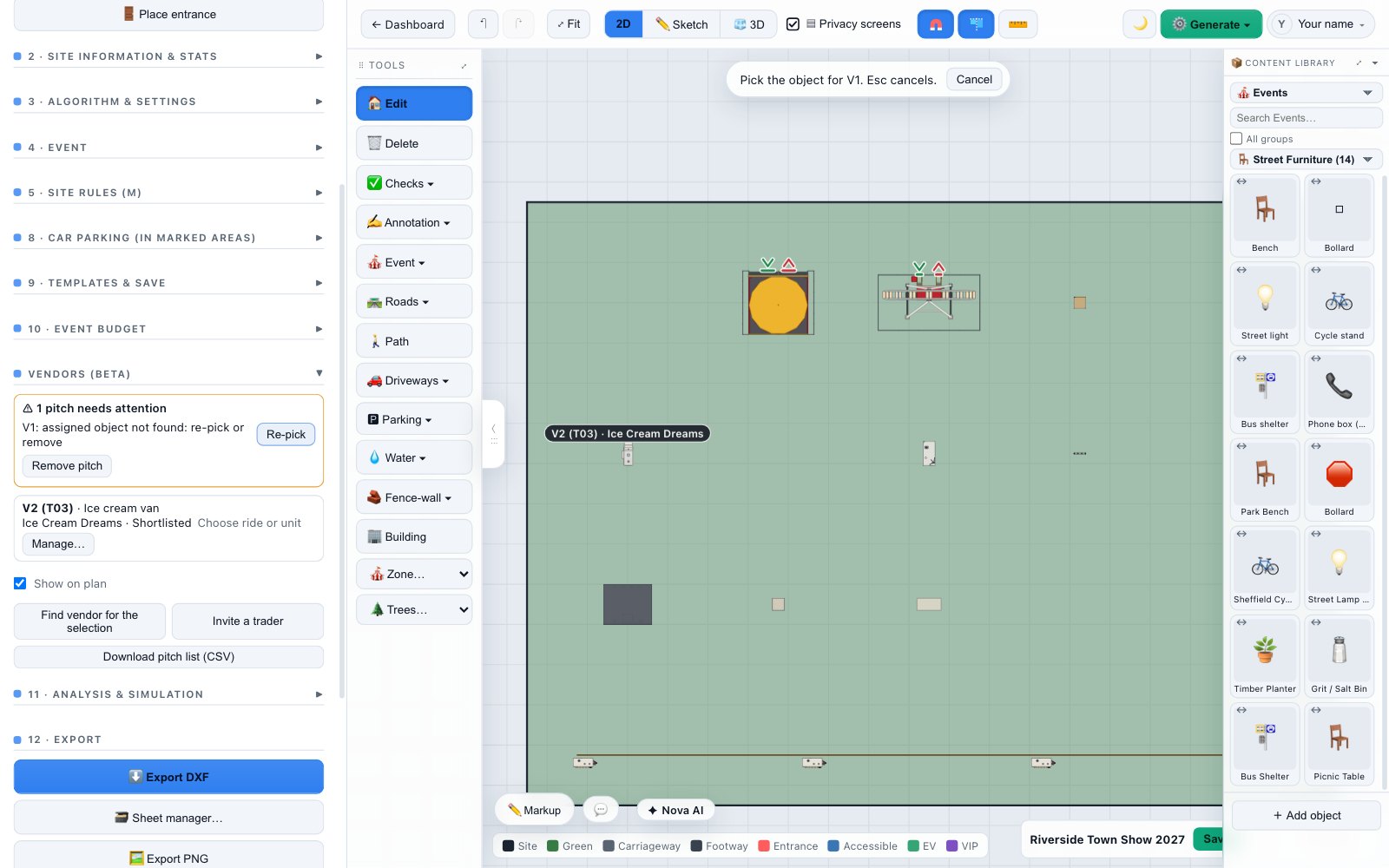
The Vendors sidebar
The Vendors section of the sidebar lists every pitch: its label, its object, its vendors (or No vendor yet). Click a row to select its object. An object hidden by the current phase or by the security key is not selected; a message says why. Show on plan draws each pitch's label and vendor beside it, on screen only: never in a PDF, image, DXF or sheet.
When a pitch loses its object
These edits leave a pitch without its object: deleting the object, undoing past the moment it became a pitch, restoring a version without it, changing it to another type, or a collaborator's overwrite. The sidebar shows a warning at once, unsaved edits included:
- Assigned object not found: re-pick or remove.
- This pitch’s object was changed to …: re-pick or remove.
- Two objects share this pitch’s id (copied in an older build): pick the right one.
Re-pick arms a pick: click (on iPad, tap) the object the pitch belongs to, or press Esc to cancel. If that object is already another pitch, you are asked whether to remove the other pitch and move this one there. Remove pitch deletes the pitch and its shortlist. Nothing is reassigned on its own, and nothing is sent to a vendor.
Copies of the design
Duplicating the project, importing an .asd file or copying from an example site keeps the ids in the design, but the shortlists belong to the original project: the copy has no pitches. Deleting the project deletes its pitches and shortlists.
Try it on your own site
Turn a boundary into an optimised UK layout in minutes — free to start.
Open the app →