Find and shortlist vendors
On an event site you can find vendors for the food units, bars, rides and attractions you have placed, and keep a shortlist on each one. Vendors come with Events, which is in Beta: they need the Pro plan or above, the events beta switched on for your workspace, and a design saved in the cloud. There is no separate vendors beta.
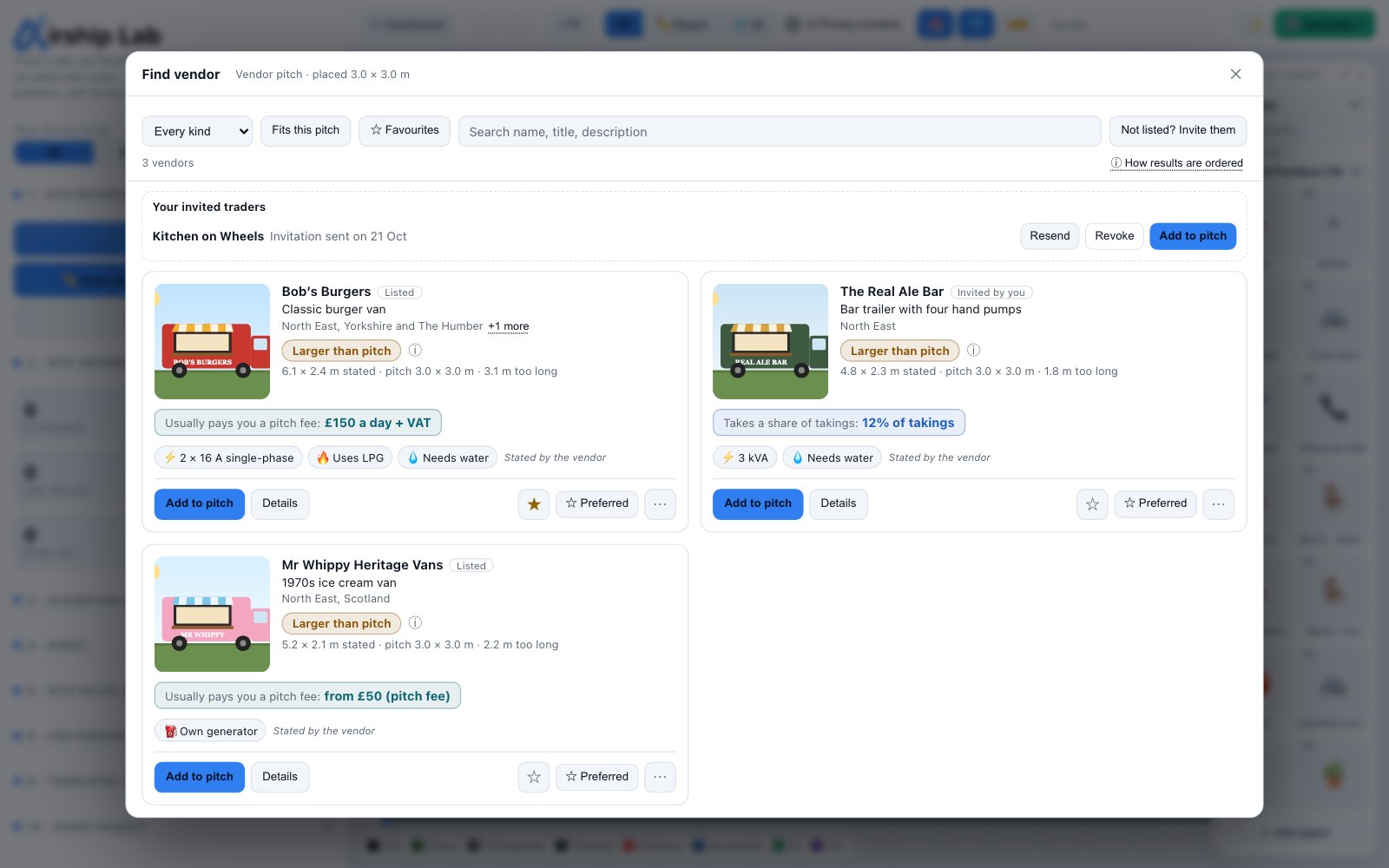
Opening Find vendor
- Right-click a placed object that takes vendors, such as a burger van, a bar, a ride or a side stall, and choose 🏪 Vendor…. On iPad, use the ⋯ menu. An object that already has a shortlist reads Vendors (2)….
- Or select the object and use Find vendor for the selection in the Vendors section of the sidebar, or Manage… on the object's inspector line.
Security objects (barriers, HVM openings and the like) and site plant never take vendors. An object that is part of an array copy reads Vendor… (detach this run first): detach the run so each copy can be its own pitch.
Searching
The window opens filtered to the object's type and to Fits this pitch. You can widen it to every kind, show only your favourites (☆ Favourites), and search business names, listing titles and descriptions. You see two kinds of business: those an Airship admin has listed, and the traders you invited yourself (marked Invited by you). Results are one card per listing, so a fairground firm with three rides shows three cards. At most 100 cards are shown: search to narrow. ⓘ How results are ordered, under the search box, gives the order the results are in.
Reading a card
Every figure on a card is stated by the vendor: the ground space they need, their power supplies, LPG and generator, and their guide price with who pays whom (for example Usually pays you a pitch fee: from £150 a day). Prices the vendor has not chosen to show read Price on request. A guide price is the vendor's own figure, not a quote.
The fit badge compares the size the vendor states with the object's size on your plan, either way round: ✓ Fits by footprint or Larger than pitch, with both sizes under it. Press ⓘ beside it for what it does not cover. Fit compares the size the vendor states with this pitch’s size on your plan. Footprint only: access, clearance and serving side are not checked, and it is not a sign the unit is safe for this spot.
Shortlisting
Add to pitch adds the vendor to the object's shortlist, up to five vendors a pitch. The first time, the object becomes a pitch with a label: V1, V2 and so on. A vendor appears once per pitch: if they are already there with another of their listings, the card offers Switch to … instead, and a vendor already there reads ✓ On this pitch (✕ takes them off). ☆ Preferred puts a vendor first for that object type in your workspace, and the ☆ star marks them as a favourite for every search.
Reporting a listing
If a listing looks wrong (spam, offensive, misleading, someone else's photos or words, or a claim that Airship checked or endorses the vendor), use Report in the ⋯ menu on its card or on its details page. Airship reads every report. The vendor is never told who reported them.
Try it on your own site
Turn a boundary into an optimised UK layout in minutes — free to start.
Open the app →